

If your office printer jams constantly, the paper in the tray is very often the real culprit. Copy paper printer downtime is rarely just bad luck it’s usually the predictable result of moisture, dust, inconsistent thickness, or poor manufacturing quality in the paper itself. The good news: once you understand what’s actually happening inside your printer with each sheet, most of this downtime is preventable.
This guide walks through exactly why certain copy paper causes more jams, misfeeds, and printer errors than others, how to diagnose the specific problem you’re having, and what to change in your paper, your storage, and your maintenance routine to fix it for good.
Understanding the Real Cost of Copy Paper Printer Downtime
It’s tempting to treat a paper jam as a two-minute annoyance. In practice, the costs stack up in ways most offices never measure.
Every jam typically involves:
- The time to stop, locate, and clear the jam
- Lost productivity for the employee waiting on the print job
- Wasted sheets (often more than the one that jammed)
- Wear on rollers, sensors, and feed mechanisms
- Occasional service calls or technician visits for chronic issues
A single jam might cost a few minutes. A printer that jams five times a day, across a 20-person office, adds up to hours of lost productivity every month plus the slow degradation of a machine that’s working harder than it should.
A quick way to see the scale of the problem: if an office of 25 employees loses just 10 minutes per week each to paper jams and print delays, that adds up to over 200 hours of lost productivity a year roughly the equivalent of a full month of one employee’s working time, spent entirely on a problem that’s usually preventable.
How Paper Quality Affects copy paper printer downtime Performance
Printers are precision machines. Laser printers rely on consistent paper thickness and stiffness to move sheets through rollers, around a fuser, and past a hot drum without misalignment. Inkjet printers rely on paper surface and coating consistency to control how ink is absorbed and dried.
When the paper itself varies sheet to sheet, ream to ream the printer has to compensate constantly. That’s when printer paper quality problems start showing up as printer troubleshooting tickets instead of simple print jobs.
According to printer manufacturer guidance, most paper-related service issues can be traced to one of a small handful of physical paper properties, which we’ll break down below.
If you haven’t nailed down your paper specs yet, our A4 Copy Paper Buying Guide covers GSM, brightness, opacity, and moisture content in full before you start troubleshooting.
Top Causes of Copy Paper Printer Downtime
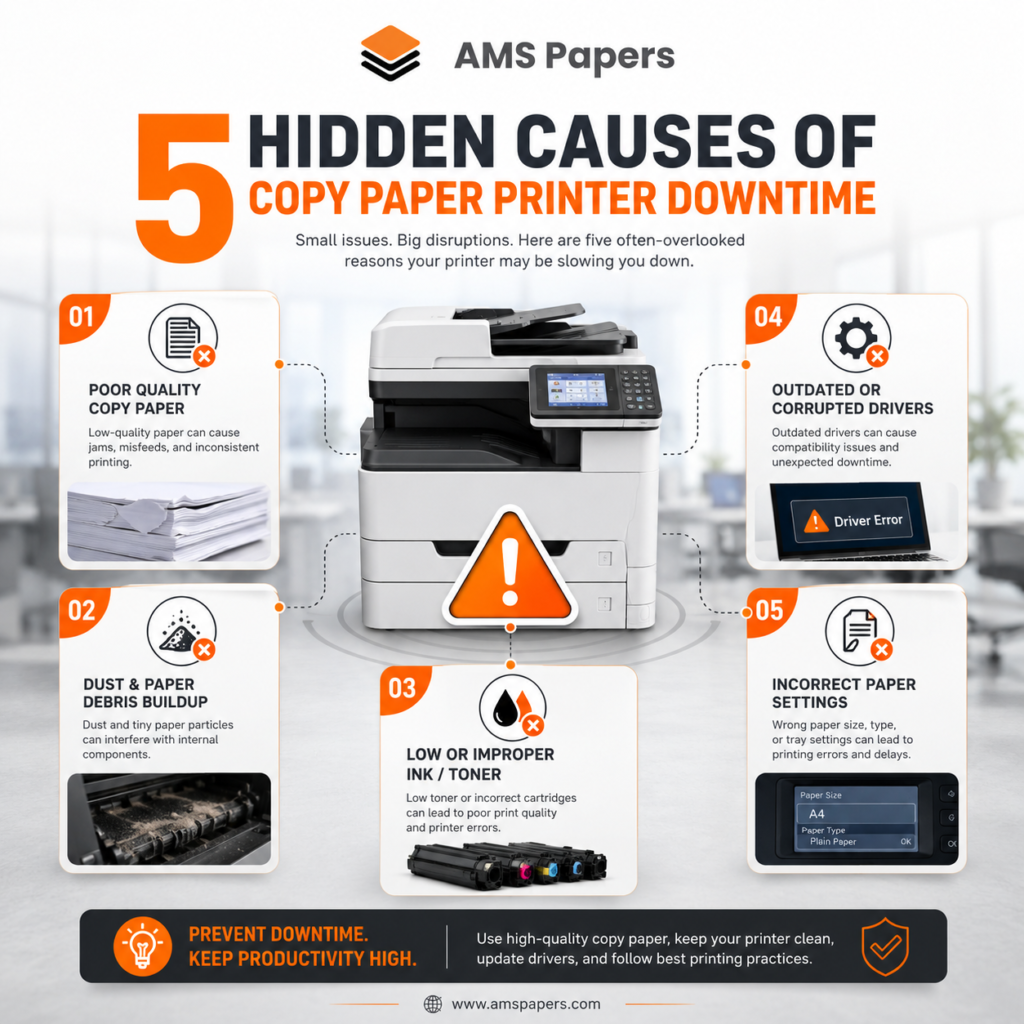
Not all copy paper is created equal, even when two boxes look identical on the shelf. Here are the most common physical issues that lead to jams and downtime.
1. Copy Paper Moisture and Humidity Absorption
Paper is hygroscopic it absorbs and releases moisture from the surrounding air. Copy paper moisture is one of the single biggest causes of jams, because:
- Too much moisture makes sheets stick together, curl, and feed unevenly.
- Too little moisture (over-dried paper) becomes brittle and prone to static, which causes multiple sheets to feed at once.
Paper stored in humid warehouses, near loading docks, or in un-climate-controlled storage rooms is especially vulnerable. Even paper that left the mill in perfect condition can absorb enough moisture during shipping or storage to start causing feed problems.
Real-world example: An accounting office in a coastal city noticed a spike in paper jams every summer. The cause wasn’t the printer it was paper stored in a supply closet without air conditioning, where humidity regularly exceeded 60%. Switching to sealed-ream storage in a climate-controlled area eliminated the seasonal spike almost entirely.
2. Paper Dust and Fiber Debris
Lower-grade copy paper sheds more paper dust microscopic fiber particles that come loose from the edges and surface of each sheet during cutting and handling. Over time, this dust:
- Builds up on printer rollers, reducing their grip
- Coats sensors that detect paper position, causing false jam errors
- Accumulates inside laser printers near the fuser, which can affect print quality and, in rare cases, create a fire risk if buildup is severe
Paper dust is one of the more overlooked causes of chronic printer maintenance issues, because the symptoms (misfeeds, sensor errors) don’t obviously point back to the paper itself.
3. Paper Curl From Poor Storage or Manufacturing
Paper curl happens when one side of a sheet absorbs moisture or dries faster than the other, causing it to bow. Common causes include:
- Reams left unwrapped and exposed to air for long periods
- Storage near windows, vents, or direct sunlight
- Inconsistent moisture content baked in during manufacturing
Curled paper struggles to feed evenly through rollers, especially in laser printer paper paths that rely on precise sheet flatness to route paper past the fuser and drum.
4. Inconsistent GSM Copy Paper and Paper Thickness
GSM (grams per square meter) measures paper weight, and by extension, paper thickness. Standard office copy paper is typically 70–80 GSM.
Problems arise when:
- Paper thickness varies within the same ream (a manufacturing quality control issue)
- The chosen GSM doesn’t match what the printer is calibrated for
- Thin, low-GSM paper is used in machines designed for slightly heavier stock, causing it to fold or jam near the fuser
Not sure how your supplier’s GSM figure compares to a US basis-weight spec sheet? Our US Paper Weight vs GSM Conversion Guide breaks down the conversion so you can confirm you’re ordering the right thickness.
Paper GSM comparison for common office use:
| GSM | Typical Use | Jam Risk If Mismatched |
|---|---|---|
| 70 GSM | High-volume, cost-driven printing | Higher — thinner sheets misfeed more easily |
| 75 GSM | General office use | Moderate — balanced but quality-dependent |
| 80 GSM | Professional documents, presentations | Lower — better stiffness and printer compatibility |
| 90–100+ GSM | Covers, certificates, premium documents | Requires printer settings adjustment |
5. Low Paper Brightness and Coating Inconsistency
Paper brightness (measured on a 1–100+ scale) mostly affects print contrast and document appearance, but inconsistent coating and surface treatment often found in lower-brightness, lower-cost paper can also affect how smoothly paper feeds and how well toner or ink adheres. Poor coating consistency is a common source of copier paper problems like streaking, uneven print density, and toner not fusing properly.
How to Read a Copy Paper Specification Sheet
Most paper suppliers publish a specification sheet for each product, and learning to read one is one of the fastest ways to predict whether a paper will cause printer downtime before you ever open the box.
Look for these figures:
- GSM (grams per square meter): confirms paper thickness and should match your printer’s supported range, usually printed in the manual or on the paper tray itself.
- Brightness (%): typically listed on a scale where higher numbers mean whiter, higher-contrast paper. 96%+ is common for premium office paper.
- Opacity: relevant for double-sided printing low opacity paper allows show-through from the reverse side, which isn’t a jam risk but affects perceived quality.
- Moisture content (%): good-quality copy paper is typically manufactured and packaged to sit around 4–5% moisture content. Specification sheets from reputable suppliers will state this explicitly.
- Caliper/thickness (microns or mm): a more precise measurement than GSM alone, useful for high-volume printers with tight tolerances.
If a supplier can’t provide this information on request, that’s often a sign their quality control and therefore their consistency from batch to batch isn’t well documented. Reliable suppliers are typically happy to share full specification sheets, since transparent product information is one of the clearest signals of a dependable paper source.
For a deeper walkthrough of what each of these specs means for your printing and how to choose the right combination, see our A4 Copy Paper Buying Guide.
Laser vs. Inkjet: Different Printers, Different Paper Needs
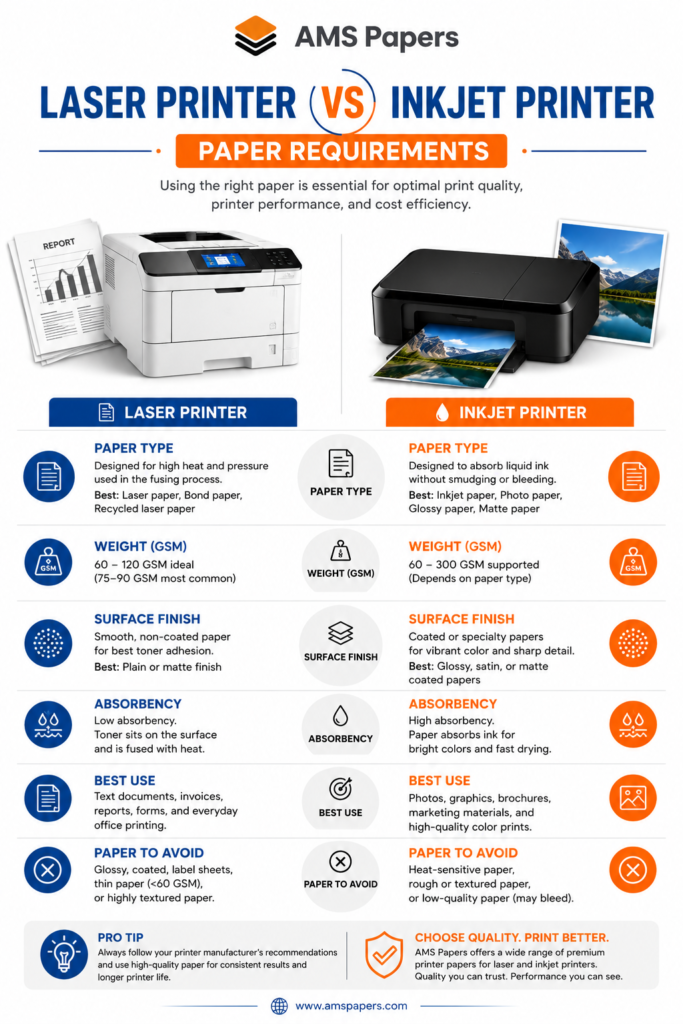
Not every paper-related downtime issue looks the same across printer types. Laser and inkjet printers interact with paper very differently, so troubleshooting should start with identifying which type of printer you’re using.
Laser Printer Paper Requirements
Laser printers use heat and pressure to fuse toner to the page, which means:
- Paper needs enough stiffness to travel through rollers without buckling
- Paper needs to tolerate heat from the fuser without excessive curling afterward
- Moisture content needs to be tightly controlled, since heat exaggerates the effects of paper that’s too wet or too dry
Laser printer paper that’s inconsistent in thickness or moisture is one of the most common causes of repeated jams near the fuser assembly.
Inkjet Paper Requirements
Inkjet printers spray liquid ink directly onto the page, so the priority shifts to:
- Surface absorbency and coating consistency, so ink dries evenly without feathering or bleeding
- Avoiding paper that’s too glossy or coated for standard document printing, which can cause smudging
- Paper that resists curling once it absorbs the moisture from wet ink
Using the wrong paper type for your printer for example, uncoated bargain paper in an inkjet designed for coated stock can create the same downtime symptoms as a laser jam, even though the underlying cause is different.
Our guide on how many sheets are in a box of A4 paper also covers printer compatibility basics if you’re buying paper in bulk for a mixed fleet of laser and inkjet devices.
For manufacturer-specific paper recommendations, check your printer’s official support documentation for example, HP Support, Canon Support, Brother Support, or Xerox Support all publish approved paper specifications for their printer lines. Referencing these directly can save significant troubleshooting time.
copy paper printer downtime Troubleshooting Guide: Step-by-Step Solutions
When printer downtime becomes frequent, work through this sequence rather than guessing.
Step 1: Identify the Symptom
Different symptoms point to different root causes:
| Symptom | Likely Cause |
|---|---|
| Multiple sheets feed at once | Static buildup, over-dried paper, or paper dust |
| Paper jams near the fuser (laser) | Curl, moisture, or GSM inconsistency |
| Sheet feeds crooked or skewed | Curl, humidity, or improper tray loading |
| Frequent “no paper detected” errors despite full tray | Paper dust on sensors |
| Ink smudging or feathering (inkjet) | Wrong paper coating for ink type |
| Print looks faded or blotchy | Low paper brightness or inconsistent coating |
Step 2: Check Paper Storage Conditions
- Store reams in their original wrapping until use
- Keep paper in a climate-controlled room ideally 20–24°C (68–75°F) with 40–60% relative humidity
- Avoid storage near exterior walls, windows, vents, or loading docks
- Don’t stack reams directly on concrete floors, which can transmit moisture
Step 3: Test With Premium Copy Paper
If jams persist after ruling out storage and printer maintenance, the paper itself is likely the issue. Premium copy paper is manufactured with tighter tolerances on GSM consistency, moisture content, and brightness all of which directly reduce jam frequency.
Run a simple test: load a single ream of premium copy paper and track jam frequency over one week compared to your current stock. Most offices see a measurable difference quickly.
Browse our premium copy paper range including Navigator, PaperOne, and Double A to find a tighter-tolerance option for your printer fleet.
Step 4: Clean and Maintain Your copy paper printer downtime
Even the best paper won’t fix an under-maintained printer. Standard printer maintenance steps include:
- Cleaning paper rollers with a lint-free cloth to remove dust buildup
- Checking and cleaning paper sensors
- Replacing worn separation pads, which are a common (non-paper) cause of multi-sheet feeds
- Following the manufacturer’s scheduled maintenance kit replacement intervals
Standard vs. Premium Copy Paper: A Reliability Comparison
| Factor | Standard Copy Paper | Premium Copy Paper |
|---|---|---|
| GSM consistency | Variable between reams | Tightly controlled |
| Moisture control | Basic, more sensitive to storage conditions | Better sealed, more stable |
| Paper dust | Higher shedding | Lower, cleaner cut edges |
| Brightness | Often 92–96 | Often 96–100+ |
| Curl resistance | Lower | Higher |
| Best for | Low-volume, low-stakes printing | High-volume offices, client-facing documents |
| Typical jam frequency | Higher, especially long-term | Lower, more predictable |
Expert Tips for Reducing Printer Troubleshooting Calls
A few practices consistently separate offices with low printer downtime from those constantly troubleshooting jams:
- Fan the ream before loading it. Lightly fanning a fresh ream of paper before placing it in the tray separates sheets that may have stuck together during packaging or storage, reducing the odds of a multi-sheet feed.
- Don’t overfill paper trays. Trays loaded past their marked capacity line put extra pressure on the feed mechanism and are a common, easily avoidable cause of misfeeds.
- Rotate stock. Use older reams before newer ones (first in, first out) so paper doesn’t sit in storage and absorb ambient humidity longer than necessary.
- Standardize paper across your office. Using a single, consistent brand and GSM across all printers simplifies troubleshooting, since you can rule out “different paper in different machines” as a variable.
- Keep a jam log. Recording the date, printer, and paper batch each time a jam occurs makes it much easier to spot patterns for example, jams clustering around a specific ream or a specific time of year.
Real-world example: A regional law firm was replacing separation pads on two printers every few months, assuming general wear and tear. After a technician suggested tracking jam frequency by paper batch, the firm realized the pattern coincided with a specific low-cost paper order. Switching that location back to their previous premium copy paper supplier extended pad life significantly and cut service calls by more than half.
Common Mistakes That Increase copy paper printer downtime
Even well-intentioned offices make avoidable mistakes that quietly increase copy paper printer downtime:
- Buying only on price, without checking GSM, brightness, or brand consistency
- Opening multiple reams at once, exposing more paper to humidity than necessary
- Mixing paper types in the same tray (different brands, GSM, or brightness)
- Ignoring printer error codes related to paper feed, assuming they’re one-off glitches
- Skipping printer maintenance schedules, letting rollers and sensors accumulate dust
- Storing paper in the same room as printers, where heat and toner dust can affect nearby stock
Preventing copy paper printer downtime: A Practical Checklist
Use this checklist as an ongoing reference for your office:
- Store paper in a climate-controlled room (40–60% humidity)
- Keep reams wrapped until immediately before use
- Match paper GSM to your printer’s specifications
- Choose a consistent, reputable paper brand for all machines
- Test premium copy paper if jam frequency is high
- Clean printer rollers and sensors on a regular schedule
- Replace feed/separation pads per manufacturer guidance
- Track jam frequency by paper batch to catch quality issues early
- Avoid mixing paper brands or weights within the same tray
- Review manufacturer-approved paper specs annually
Industry standards from organizations like ISO and TAPPI (the Technical Association of the Pulp and Paper Industry) provide the underlying specifications like moisture content ranges and brightness measurement methods that reputable paper manufacturers are tested against. Choosing paper from suppliers who reference these standards is a reliable way to filter out inconsistent stock before it ever reaches your printer tray.
Conclusion: Reducing Copy Paper Printer Downtime for Good
Copy paper printer downtime is almost always traceable to a specific, fixable cause moisture, dust, inconsistent GSM, curl, or a mismatch between paper type and printer technology. Rather than treating jams as routine background noise, diagnosing the actual symptom and working through storage conditions, paper quality, and printer maintenance in sequence will resolve the vast majority of chronic issues.
For offices that print in high volume or can’t afford repeated interruptions, switching to a premium copy paper with tighter manufacturing tolerances is often the single highest-impact change available it directly addresses the GSM consistency, moisture control, and brightness issues that cause most jams in the first place.
If frequent paper jams are costing your team time every week, it’s worth auditing your current paper supply against the checklist above and considering a supplier who can guarantee consistent quality, not just a low price per box.
Before you switch suppliers, read our guide on evaluating supply chain risk in paper sourcing so you know exactly what questions to ask before committing to a new order.
Frequently Asked Questions
Why does my printer jam more with certain copy paper brands? Different manufacturers use different quality control standards for GSM consistency, moisture content, and cutting precision. Lower-cost paper often has more variation between sheets, which increases the chance of misfeeds and jams.
Does paper thickness affect printer jams? Yes. Paper that’s too thin can fold or crease as it moves through rollers, while paper that’s too thick for a printer’s specifications can cause feed resistance or jams near the fuser. Matching GSM to your printer’s supported range reduces this risk significantly.
Can humidity really cause printer paper jams? Yes humidity is one of the most common causes. Paper that absorbs too much moisture becomes soft and prone to sticking or curling, while overly dry paper becomes brittle and prone to static, both of which increase multi-sheet feeds and jams.
What is the ideal humidity level for storing copy paper? Most paper manufacturers recommend storing paper in an environment with 40–60% relative humidity and a temperature of roughly 20–24°C (68–75°F).
Is premium copy paper worth the extra cost? For offices experiencing frequent jams, yes. Premium copy paper typically has tighter GSM consistency, lower dust shedding, and better moisture control all of which reduce downtime, wasted sheets, and printer wear over time.
What’s the difference between laser and inkjet paper requirements? Laser printers need paper that tolerates heat from the fusing process without excessive curling, while inkjet printers need paper with consistent surface absorbency so ink dries evenly without smudging or feathering.
How does paper dust affect printer maintenance? Paper dust accumulates on rollers and sensors, reducing grip and causing false paper-detection errors over time. Regular cleaning, combined with lower-dust paper, reduces this type of downtime.
What GSM is best for everyday office printing? 75–80 GSM is standard for most office printing, offering a good balance of print quality, durability, and printer compatibility. Higher GSM (90+) is typically reserved for covers, certificates, or premium documents.
How can I tell if paper curl is causing my printer jams? Check a few sheets straight from the ream on a flat surface. Noticeable bowing or curling at the edges is a sign that storage conditions or paper quality are contributing to feed problems.
Does paper brightness affect print quality or just appearance? Primarily appearance and contrast, but brightness is often correlated with overall manufacturing quality paper with inconsistent brightness sometimes also has inconsistent coating, which can contribute to feed or print quality issues.
How often should printer rollers be cleaned to prevent paper-related downtime? Most manufacturers recommend cleaning rollers and sensors every 1–3 months in a standard office environment, or more frequently in high-volume or dusty settings. Check your specific printer’s maintenance schedule for exact intervals.
Can mixing paper brands in the same printer tray cause jams? Yes. Different brands can have slightly different thickness, moisture content, or surface texture, and printers calibrated for one type may misfeed when paper properties are inconsistent within the same tray.